Dane Poyzer
On this page13 sections
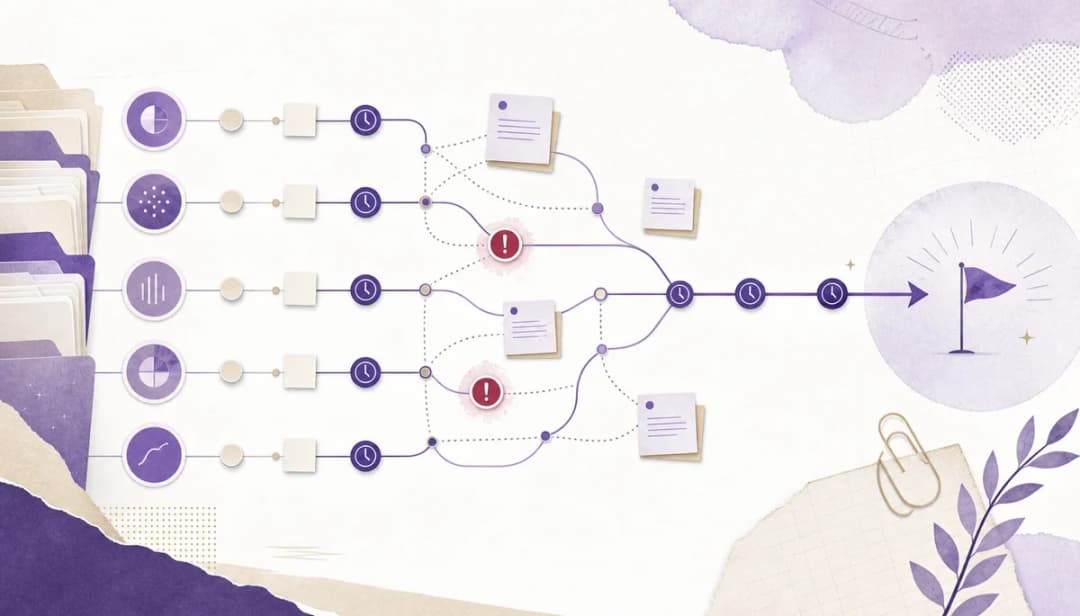
If you’ve got notes everywhere, half-finished lists, and that nagging feeling that something important is slipping through the cracks, you’re not alone. In my experience, the hardest bit is often not the work itself. It’s turning a messy pile of thoughts into a plan you can trust.
In this beginner-friendly guide, you’ll use dypt to turn scattered notes into a clear task tree with priorities, reminders, notes, and next actions. You can do it in about 20 to 30 minutes, even if you’re starting with pasted notes, meeting notes, screenshots, whiteboard photos, or ideas from your phone.
For the broader strategy behind this workflow, see how to use AI to break down tasks; this article is the practical brain-dump-to-task-list version.
Prerequisites
- A dypt account on the free plan or above
- Basic comfort using a web app and copying text between apps
- A rough set of inputs to work from, such as pasted notes, meeting notes, a voice memo transcript, screenshots, whiteboard photos, handwritten notes, or a project brief
- A clear enough outcome to name, even if the steps are still fuzzy, such as “plan the house move” or “prepare the client proposal”
- Optional but helpful: a basic understanding of due dates, reminders, and priorities in task apps
Materials & tools
- A current web browser
- A dypt account at dypt.app
- Your raw material, such as pasted notes, meeting notes, action points, links, screenshots, whiteboard photos, handwritten notes, or a voice note transcript
- Optional: a phone camera for paper notes or whiteboards
- Optional: a 10-minute timer for the first capture pass
- Helpful references: AI task breakdown, Task notes, and dypt docs
1. Capture everything into one inbox task note


Start by creating one reliable capture point. This step matters because your brain is much worse at holding loose ends than it likes to admit. When your notes live across messages, screenshots, paper scraps, and different apps, you keep re-processing the same information.
A single inbox note cuts that noise down straight away.
In dypt, create a top-level task named after the outcome you want, such as “Prepare client proposal” or “Plan house move”. Against that task, create a note which you title Raw brain dump or Inbox notes. Paste in your copied notes, bullet points, rough thoughts, links, dates, names, and messages.
Don’t tidy the wording yet. If you have screenshots, whiteboard photos, or handwritten notes, leave them as image files for the later image step rather than trying to paste them into the note. Text belongs in notes; images are best handled through dypt’s image-to-task flow.
Set a timer for 10 minutes if it helps, and aim for capture, not quality.
A lot of people stall here because they feel they should organise as they go. Don’t. You’re trying to reduce friction first.
Once everything is in one place, you can think more clearly. Until then, you’re still carrying the project around in your head.
Pitfalls
- Trying to sort and rewrite while you capture → Set a short timer and focus only on getting everything into one place.
- Creating lots of separate tasks too early → Use one parent task with a raw note first, then split it up later.
- Leaving important context in another app → Paste source links, dates, or names into the same note so nothing gets lost.
2. Separate outcomes, tasks, and reference notes
Now you move from collecting to sorting. The aim is not to create a perfect structure in one pass. You just want to separate what needs action from what is background information.
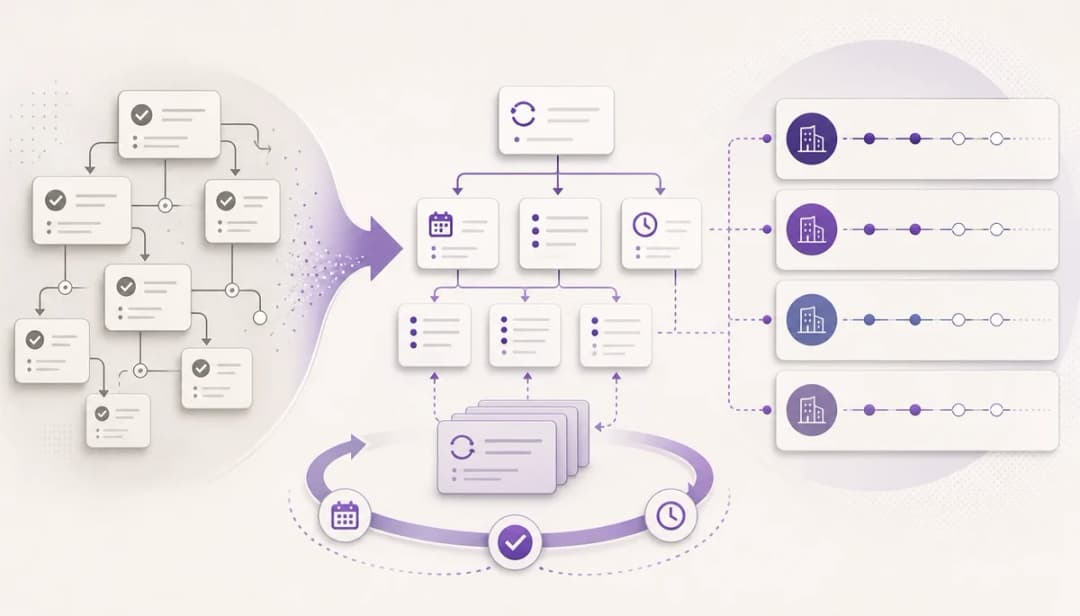
This is the point where a pile of notes starts to become manageable, because you stop treating every line as if it belongs on today’s to-do list. It’s also the stage where you begin to turn notes into tasks while keeping the useful context attached.
Read through your raw note once and tag each item mentally as one of three things: an outcome, an action, or reference material. Outcomes are bigger results, such as “launch the newsletter” or “book the holiday”. Actions are things you can do, often starting with a verb.
Reference material is context, such as meeting notes, links, requirements, or copied messages. In dypt, create a first layer of child tasks for the major chunks of work under your main task. Move useful background details into task notes attached to the right branch.
This is where the jump from notes to task list starts to feel much easier.
Keep the original raw note intact while you do this. It gives you a safety net, and it stops you from losing context too early. If an item still feels vague, keep it broad for now and treat it as a parent task.
You can break it down in the next step.
Pitfalls
- Turning reference material into tasks → Keep facts, links, and meeting summaries in notes attached to the relevant task.
- Making every task too broad → If a task still feels fuzzy, label it as a parent task and break it down later.
- Losing the original wording → Keep the raw note untouched until the full workflow is done.
3. Turn your brain dump to task list with AI


This is where this workflow really earns its keep. AI is useful at the moment when you can see the mess but can’t quite see the shape yet. The important part is that you stay in charge.
You are using AI to draft structure and pull out action items, not to decide what matters for you.
In dypt, use the AI tools in two passes. First, open the note AI menu on your raw text note and run Extract action items. If the note is long, inconsistent, or hard to scan, run Clean up formatting first, but only if it helps.
For short notes, you can usually skip straight to extraction. dypt will suggest tasks based on the text and let you review them before they become subtasks. Then, if one of the new parent tasks still feels broad, use Suggest subtasks on that task to add another layer.
That gives you an AI task list that starts with your own input rather than a blank page. For many people, an AI to-do list works best when it reflects their own wording and priorities, rather than generic suggestions from a blank prompt. In practice, the best AI task list is one you can quickly review, trim, and trust.
For the optional image branch, use Tasks from image from the task AI menu. Upload your screenshot, whiteboard photo, or handwritten note and give a simple instruction like this:
Add the text items in the image as tasks exactly as they are written.
Review the output carefully. Merge duplicates, delete weak suggestions, and keep background context in notes rather than turning every line into a task. If you want to go from brain dump to task list without getting bogged down, this review stage is what keeps the workflow useful.
Used this way, AI can convert notes to tasks faster without taking over the thinking. The aim is not a perfect AI todo list on the first try; it’s a workable draft you can shape.
Pitfalls
- Accepting the first AI draft without checking it → Treat AI output as a draft to review, not the final source of truth.
- Cleaning up before you finish capturing → Get the raw material down first, then clean it only if it helps you see the actions more clearly.
- Trying to make one AI action do everything → Extract action items first, then use Suggest subtasks on branches that still feel too broad.
- Treating AI output as facts → Check suggested tasks against your original notes before adding dates, reminders, or estimates.
4. Clean up the structure and make each task actionable
Once AI gives you a draft, your job is to make it usable. A good task tree is not the one with the most detail. It’s the one that makes starting feel easier.
That usually means clear verbs, sensible grouping, and enough depth that each active branch leads to an obvious next step.
Go through the generated tasks and rename vague items so they start with an action. Change “supplier” to “Email supplier”, “proposal” to “Draft proposal opening section”, or “dentist” to “Book dentist appointment”. Merge duplicates and remove clutter that adds no value.
If something still feels too big, break it down one level deeper. If it feels too tiny to deserve its own space, roll it into the parent task. This is where dypt’s deeper hierarchy helps you keep structure without flattening everything into one long list.
Try to stop when the next action becomes easy to begin. That’s enough detail for now. If you keep breaking tasks down long after they feel usable, you can end up replacing action with admin.
Pitfalls
- Leaving tasks as nouns like “presentation” or “garden” → Rewrite them as actions or outcomes with a clear next move.
- Breaking everything down too far → Stop when the next action feels easy to start.
- Keeping duplicate tasks in different branches → Choose one home for each task and keep extra context in notes or dependencies.
5. Add priorities, deadlines, reminders, and estimates


A task tree becomes far more useful when it helps you decide what matters now. This step adds just enough decision-making signal to stop you staring at the whole plan every time you sit down to work. You don’t need to fill every field on every task.
In fact, that usually makes things worse.
In dypt, add priorities to the tasks that matter most, due dates where there is a real deadline, reminders for follow-ups, and rough time estimates where planning your time matters. Keep the estimates broad: 15 minutes, 30 minutes, 1 hour, and so on. If one task depends on another, add a blocker or dependency so the sequence is clear.
This is often the difference between a tidy list and a working system. It also helps when you revisit the tree later, because you can see what is urgent, what is important, and what can wait.
Use these fields lightly. Dates should help you make decisions, not create artificial panic. Estimates should help you plan, not pretend you can predict every task down to the minute.
Pitfalls
- Adding dates to everything → Use deadlines sparingly, or your list starts to look urgent when it is not.
- Guessing time too precisely → Start with rough ranges such as 15 minutes, 30 minutes, or 1 hour.
- Ignoring reminders for follow-ups → If someone else owes you something, set a reminder now instead of relying on memory.
6. Pick the next action and set a review rhythm


This final beginner step stops your task tree from becoming another well-organised archive. What you need now is not more structure. You need momentum.
That means choosing a short list of next actions and setting up a review habit so your plan stays alive after today.
Scan each active branch and identify the next physical action. Then choose one to three tasks for today based on priority, deadline, available time, and energy. Use dypt’s filters to narrow the view so you are not looking at everything at once.
If choosing what matters is the hard part, the task prioritization myths article covers the traps that make this step feel heavier than it needs to.
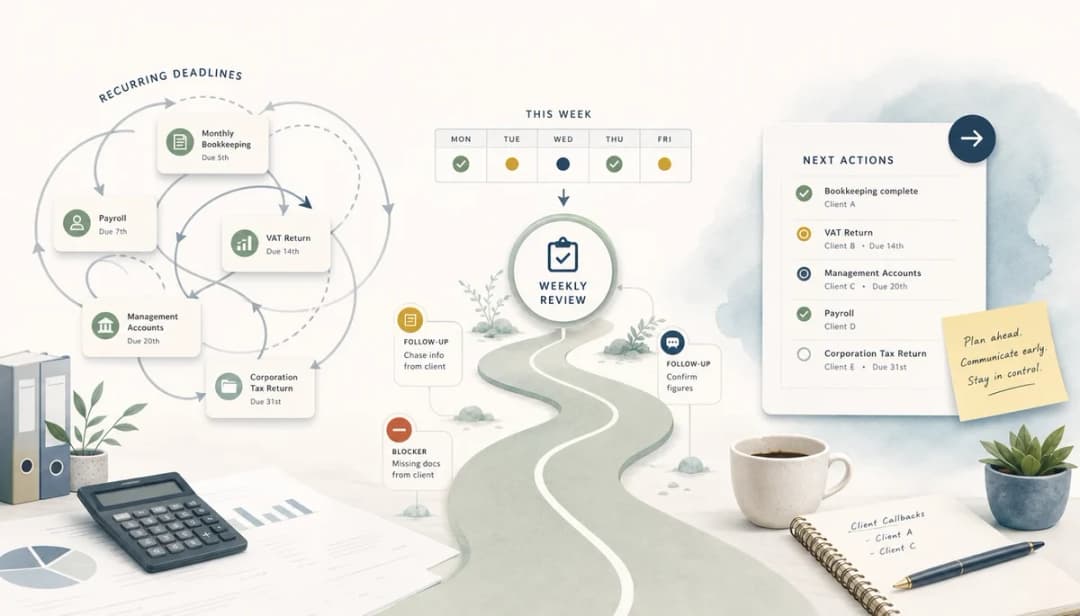
If the project will run beyond a few days, add a recurring weekly review task to tidy the tree, add new inputs, and remove stale items. If other people are involved, this is a good point to share the task tree so everyone works from the same source of truth.
This matters more than it sounds. A short, realistic next-action list is often what helps you move from planning into doing, especially if task paralysis makes big projects hard to start.
Pitfalls
- Picking too many “next” tasks → Limit today’s list so you can actually finish it.
- Forgetting to review the tree later → Add a recurring review task before you leave the workflow.
- Treating the task tree as fixed → Update it as you learn more; the structure should bend with the work.
7. Optional advanced: use an agent with the dypt CLI


If your task tree is large, messy, shared, or high-stakes, you can take this workflow further with the dypt CLI and an AI coding agent such as Codex or Claude Code / Cowork. This gives you a more agentic way to review a project.
Instead of manually inspecting every branch, you can ask the agent to inspect a parent task, read its notes and subtasks, and propose a cleaner structure before anything changes.
Create the parent task and notes in dypt first. Then give the agent the task ID, such as #123, and point it to this workflow. Ask it to inspect before changing anything, identify which items should remain as notes, and suggest clearer next actions.
For example:
Use the dypt CLI to inspect task #123 and its notes.
Use this blog post as guidance.
Propose a cleaner task tree, identify reference notes that should stay as notes, and suggest next actions.
Show me the proposed changes before applying them.
This works best when the extra review is worth it. For a quick personal list, the built-in AI tools are usually enough. For a large project, shared planning, or a task tree that has grown messy over time, an agent can give you a very useful second pass while keeping dypt as the source of truth.
You can learn more in the CLI overview and the CLI docs.
Pitfalls
- Giving the agent too broad a scope → Start with one parent task ID, not your whole workspace.
- Letting the agent change tasks before review → Ask for a proposed structure first, then approve edits.
- Using an agent for tiny lists → Keep it for larger or higher-stakes task trees where the extra review is worth it.
Troubleshooting
- Problem: My brain dump is too chaotic for AI to understand → Solution: Split it into sections such as work, home, admin, and ideas, then extract action items from one section at a time. Handle images separately with Tasks from image.
- Problem: The AI created far too many subtasks → Solution: If your AI generated task list comes back bloated, merge tiny actions into broader parent tasks, delete low-value items, and only run Suggest subtasks again on branches that still feel unclear.
- Problem: I still do not know what to do first → Solution: Add priority, due date, and time estimate to the top candidates, then choose the smallest useful next action.
- Problem: I keep ending up with a flat list again → Solution: Group related items under parent tasks and keep context in notes so the structure stays visible.
- Problem: I captured everything, but the list still feels heavy → Solution: Archive or defer low-value items, and focus only on active branches for this week.
FAQ
-
Can you use this workflow for personal tasks as well as work?
Yes. It works well for household admin, travel plans, study, freelance work, and any project that starts as a messy set of notes. -
Do you need perfect notes before you use AI?
No. Rough notes are fine. This workflow is designed for messy input, as long as the outcome is clear enough to name. -
How often should you review the task tree?
A quick daily glance helps, but a weekly review is usually enough to keep the structure tidy and current. -
What if you have ADHD or task paralysis?
Keep the scope small. Capture first, structure second, and stop breaking things down once the next action feels easy to start. -
Can you share the finished plan with someone else?
Yes. Once the tree makes sense, you can share or collaborate so everyone sees the same tasks, notes, and status.
Wrapping Up
By the end of this process, you should have moved from scattered notes to a clear task tree with structure, context, priorities, and a realistic next action. That means less mental clutter and fewer moments of staring at a vague list, unsure where to begin. If you want to try it yourself, start using dypt for free.
If you regularly need to convert notes to tasks, the real win is having a simple workflow you’ll actually repeat. A sensible next step is to explore deeper subtasks, AI-assisted breakdowns, reminders, and recurring reviews so your plan stays useful after the first draft.
Resources
If you want to take this further, start with AI task breakdown for generating subtasks and ideas, Deep task hierarchies and subtasks for structuring bigger projects, and Priorities, deadlines, and reminders for deciding what to do next. For time planning, see Time tracking and AI estimates.
For repeatable reviews, use Recurring tasks. If you’re working with other people, have a look at Task sharing and collaboration. For practical guidance, see Task notes, the full dypt docs.