Organise tasks your way with custom tags
Add flexible, reusable context to every task, then find exactly the work you need without changing your hierarchy
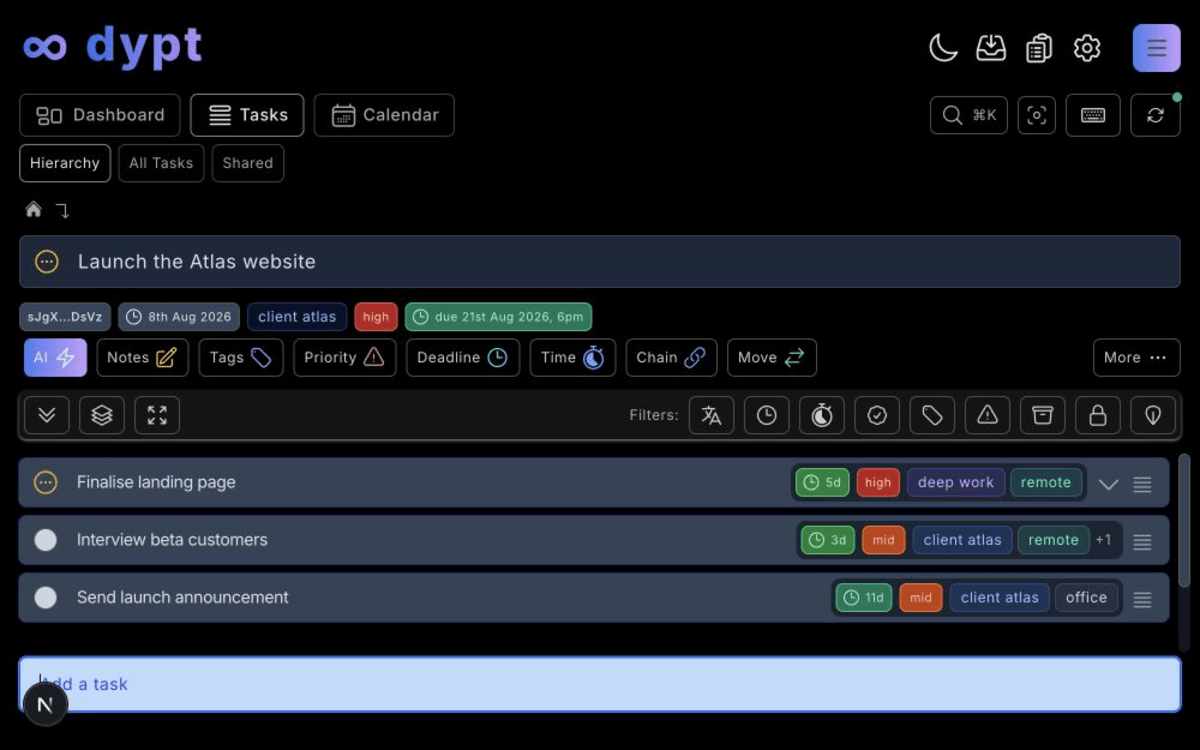
Add meaningful context to every task
Create your own colour-coded tags for contexts such as work, home, focus, remote, or anything else that matters to you.
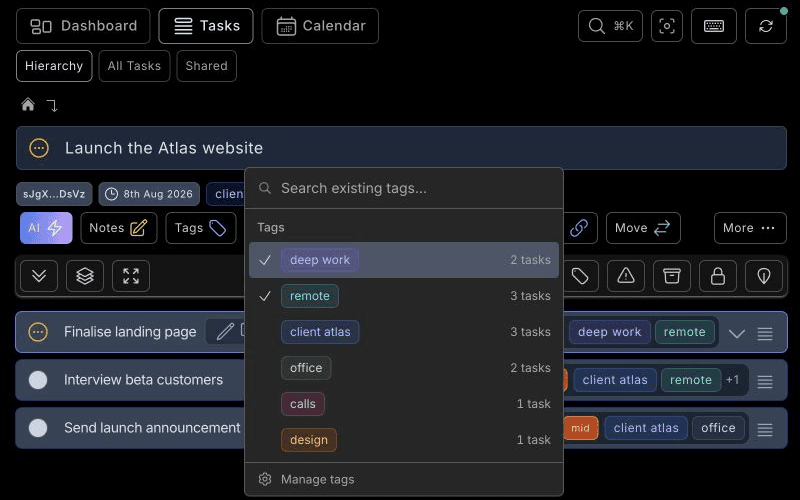
Add an optional plain-text description when a tag needs a precise definition. The picker makes that guidance discoverable while task chips stay compact.
Assign multiple tags from a task row, its task page, the edit dialog, bulk selection, or while creating a task. The searchable picker puts assigned and commonly used tags first, helping you reuse a clean set instead of creating near-duplicates.
Find the right tasks with flexible filters
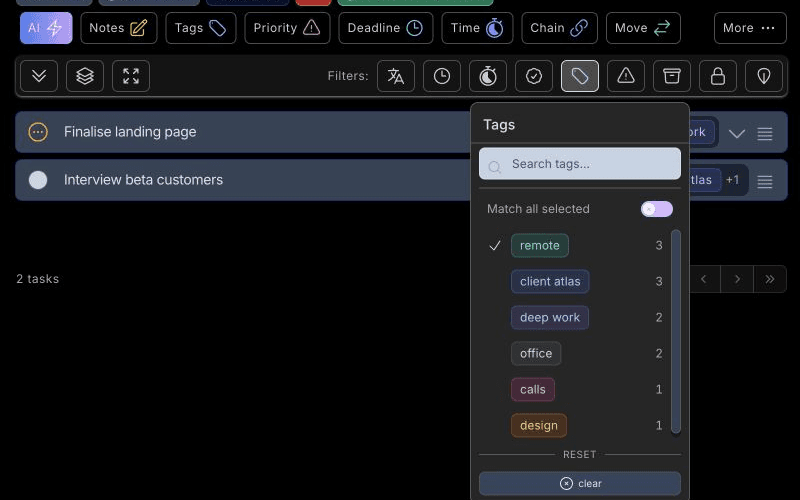
Filter your hierarchy, all-tasks view, and calendar using one or more tags. Match any selected tag for a broad view, or turn on Match all selected when every tag must apply.
Selected filters stay visible in the task controls and in the URL, making focused views easy to understand, bookmark, and revisit across devices.
Keep one clean, reusable tag library
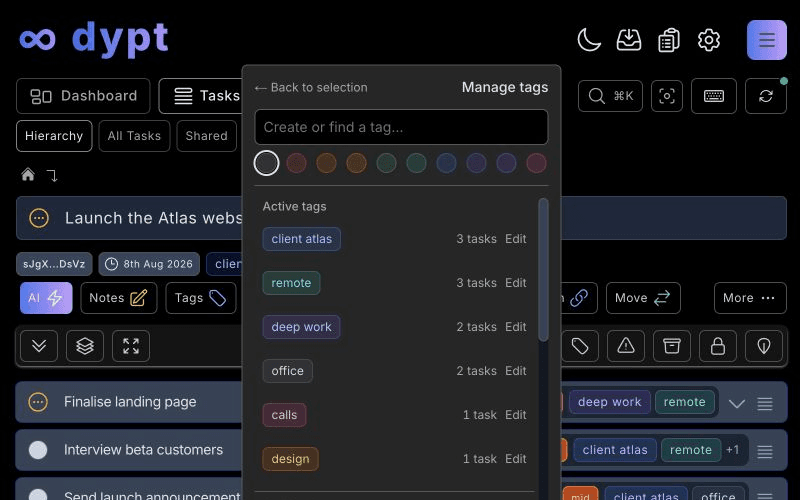
Manage tags from the same picker you use to assign them. Rename or recolour a tag, or add, edit, and clear its description.
Archive tags you no longer need, restore them later, merge duplicates safely, or delete them when they are no longer useful. Merges keep the destination tag definition authoritative, and tag names are normalised to lowercase for a consistent, easy-to-scan task list.
Use tags wherever you work
Tags work in regular server-backed views and in Local mode, including offline assignment and filtering that syncs after you reconnect.
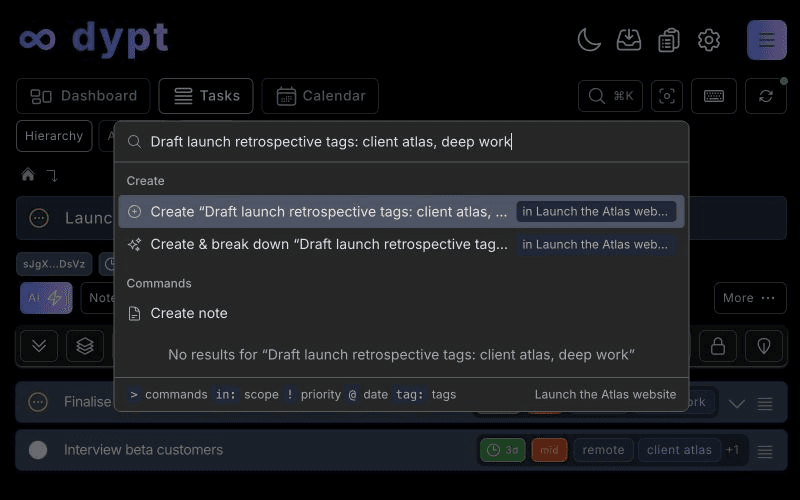
Use Command K to update tags without leaving your keyboard, add tag: or tags: followed by comma-separated names when creating a task, and create, fully inspect, update, or explicitly clear tag descriptions through the dypt CLI.
Frequently Asked Questions
Unleash your potential
Smash through mental blocks
Reclaim your productive self
Choose from free or premium plans
Sign up in seconds